VIDEO
一、准备条件 1. 一台服务器或者NAS(理论上只有其他NAS都可以) 2. 本项目使用到的开源项目 https://github.com/typecho/typecho
3. 域名(可选) 二、vps上搭建 1. docker环境安装 1.1 docker安装脚本
1 bash <(curl -sSL https://cdn.jsdelivr.net/gh/SuperManito/LinuxMirrors@main/DockerInstallation.sh)
1.2 docker-compose安装脚本
1 curl -L "https://github.com/docker/compose/releases/latest/download/docker-compose-$(uname -s) -$(uname -m) " -o /usr/local/bin/docker-compose && chmod +x /usr/local/bin/docker-compose
2. 创建docker-compose.yml文件 2.1 安装方法1:
创建docker-compose.yml文件1 mkdir typecho;cd typecho
编辑docker-compose.yml 1 2 3 4 5 6 7 8 9 10 11 12 13 14 15 16 17 18 19 20 21 22 23 24 25 26 services: typecho: image: joyqi/typecho:nightly-php8.2-apache container_name: typecho ports: - "8383:80" environment: TZ: Asia/Shanghai volumes: - ./typecho/app/usr:/app/usr depends_on: - db restart: always db: image: mariadb:10.6 container_name: typecho-db environment: MYSQL_ROOT_PASSWORD: root_password MYSQL_DATABASE: typecho MYSQL_USER: typecho MYSQL_PASSWORD: typecho_password TZ: Asia/Shanghai volumes: - ./db:/var/lib/mysql restart: always
2.2 安装方法2:
1 2 3 4 5 6 7 8 9 10 11 12 13 14 15 16 17 18 19 20 21 22 23 24 25 26 27 28 cat > docker-compose.yml <<EOF services: typecho: # Typecho 博客服务 image: joyqi/typecho:nightly-php8.2-apache # 官方 Apache 镜像 container_name: typecho ports: - "8383:80" # 宿主机 8080 -> 容器 80 environment: TZ: Asia/Shanghai # 设置时区为上海 volumes: - ./typecho/app/usr:/app/usr # 当前目录存放 Typecho 文件 depends_on: - db # 依赖数据库 restart: always # 自动重启策略 db: # 数据库服务 image: mariadb:10.6 # MariaDB 镜像 container_name: typecho-db environment: MYSQL_ROOT_PASSWORD: root_password # 数据库 root 密码(请修改) MYSQL_DATABASE: typecho # 默认数据库 MYSQL_USER: typecho # 数据库用户 MYSQL_PASSWORD: typecho_password # 用户密码(请修改) TZ: Asia/Shanghai # 时区 volumes: - ./db:/var/lib/mysql # 数据库数据存放当前目录 restart: always EOF
3.执行容器运行命令 正常显示如下:
1 2 3 4 docker compose ps NAME IMAGE COMMAND SERVICE CREATED STATUS PORTS typecho joyqi/typecho:nightly-php8.2-apache "docker-php-entrypoi…" typecho 8 minutes ago Up 8 minutes 0.0.0.0:8383->80/tcp, [::]:8383->80/tcp typecho-db mariadb:10.6
4. cloudflare配置域名端口 4.1 域名dns添加AAAA记录或A记录
规则名称
当传入请求匹配时
目标端口重写到
8383
5. 打开web页面使用 成功以后需要打开自己相应的端口(8383)防火墙就可以web端访问了
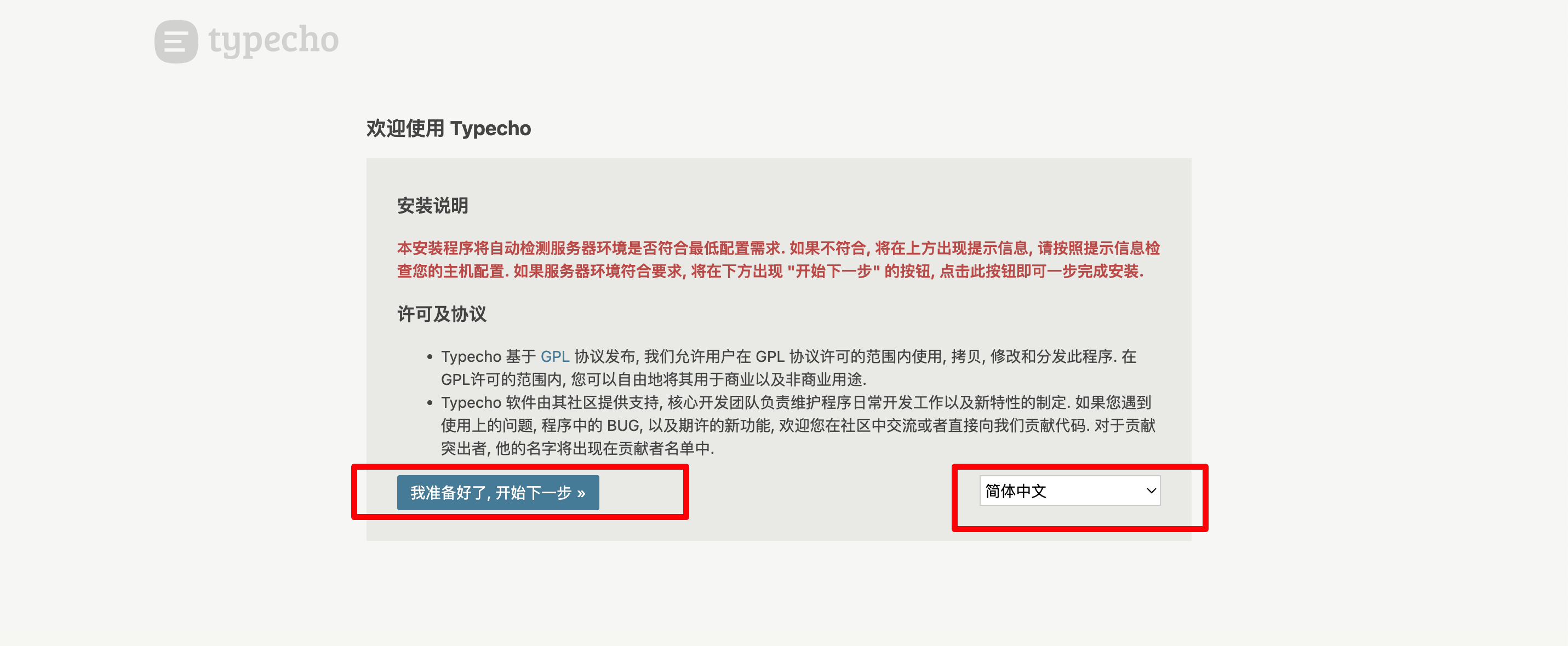
5.1 初始化开始
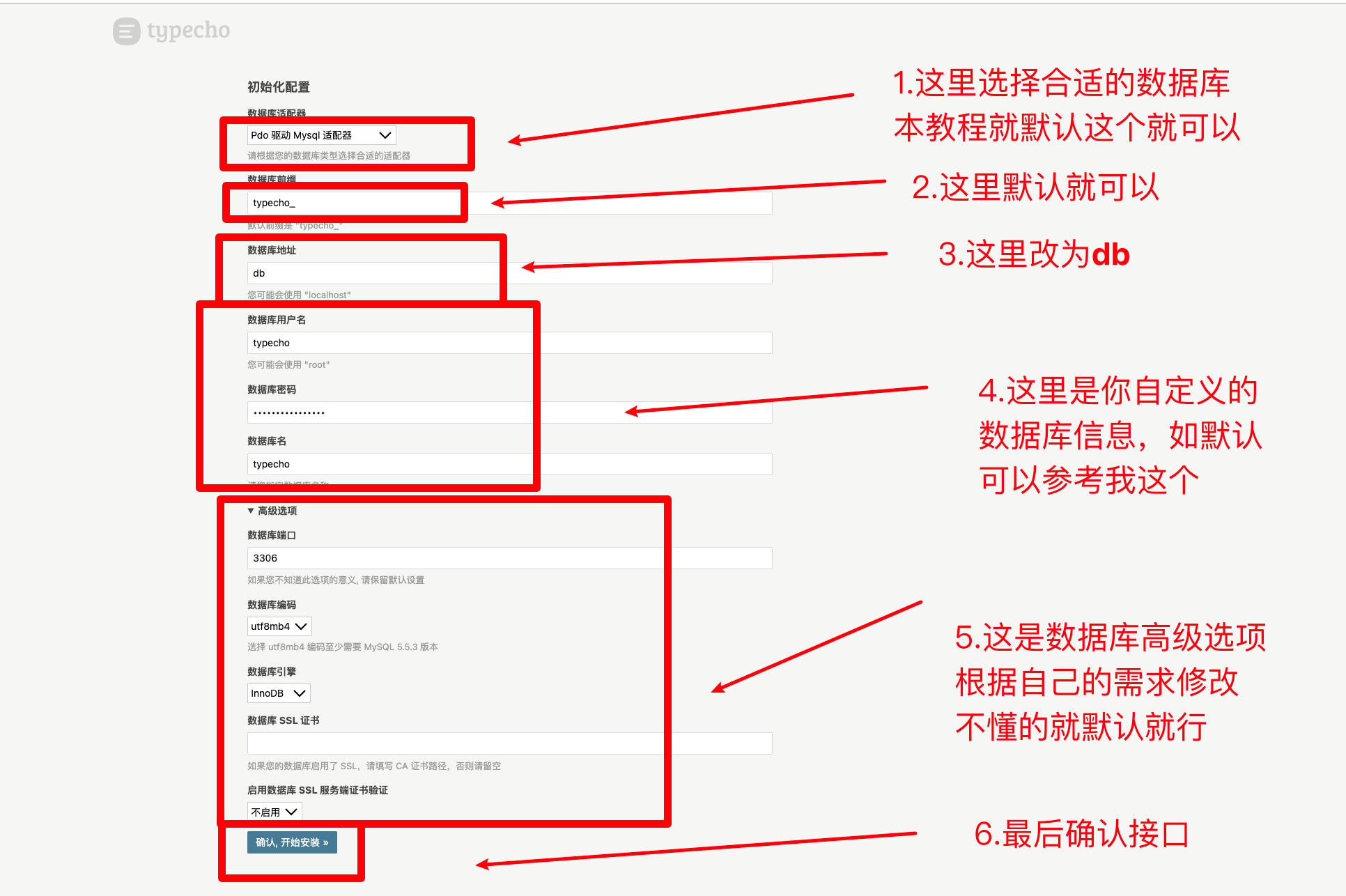
5.2 下一步-根据图示配置数据库信息
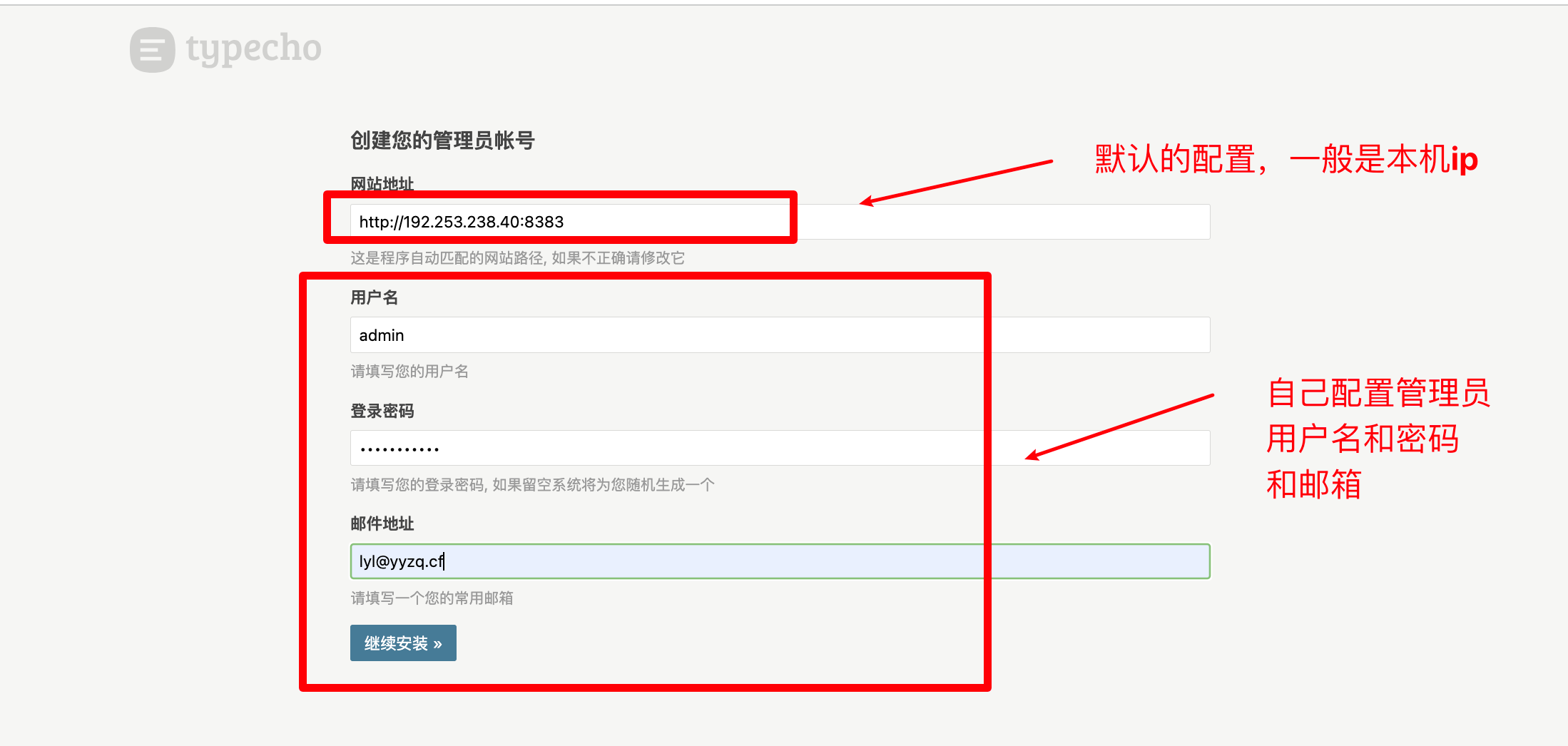
5.3 配置管理员信息
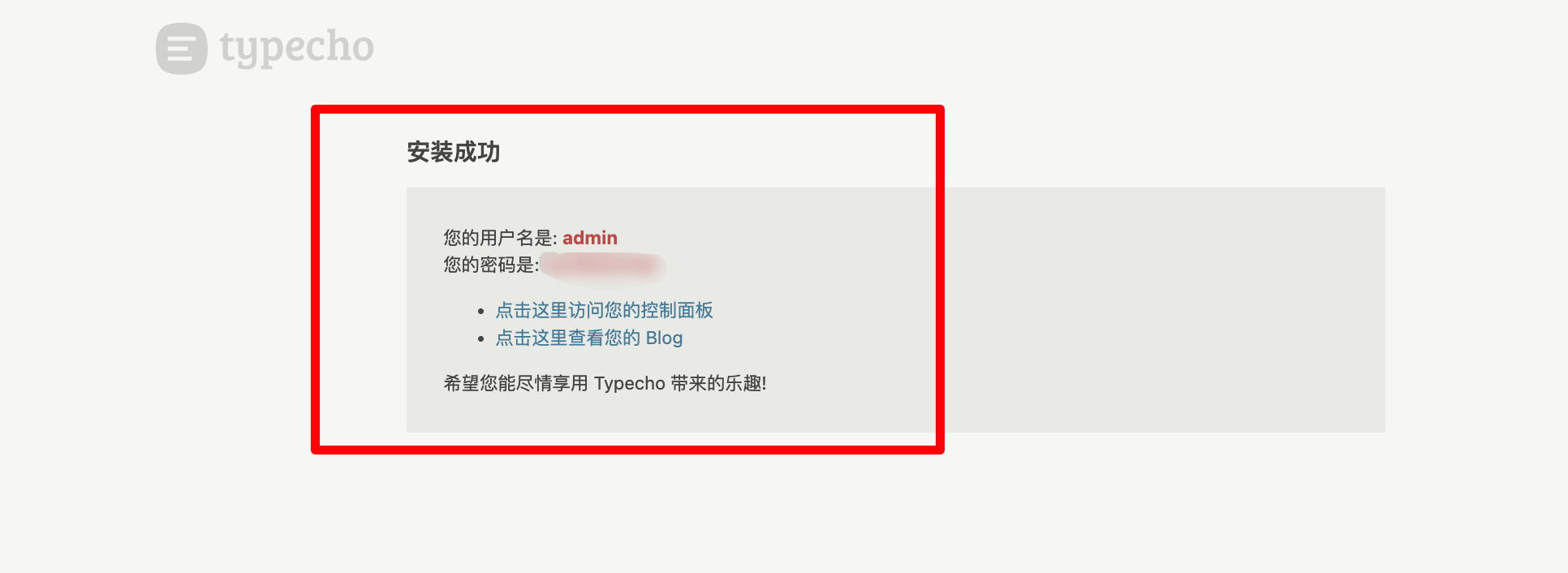
5.4 安装成功
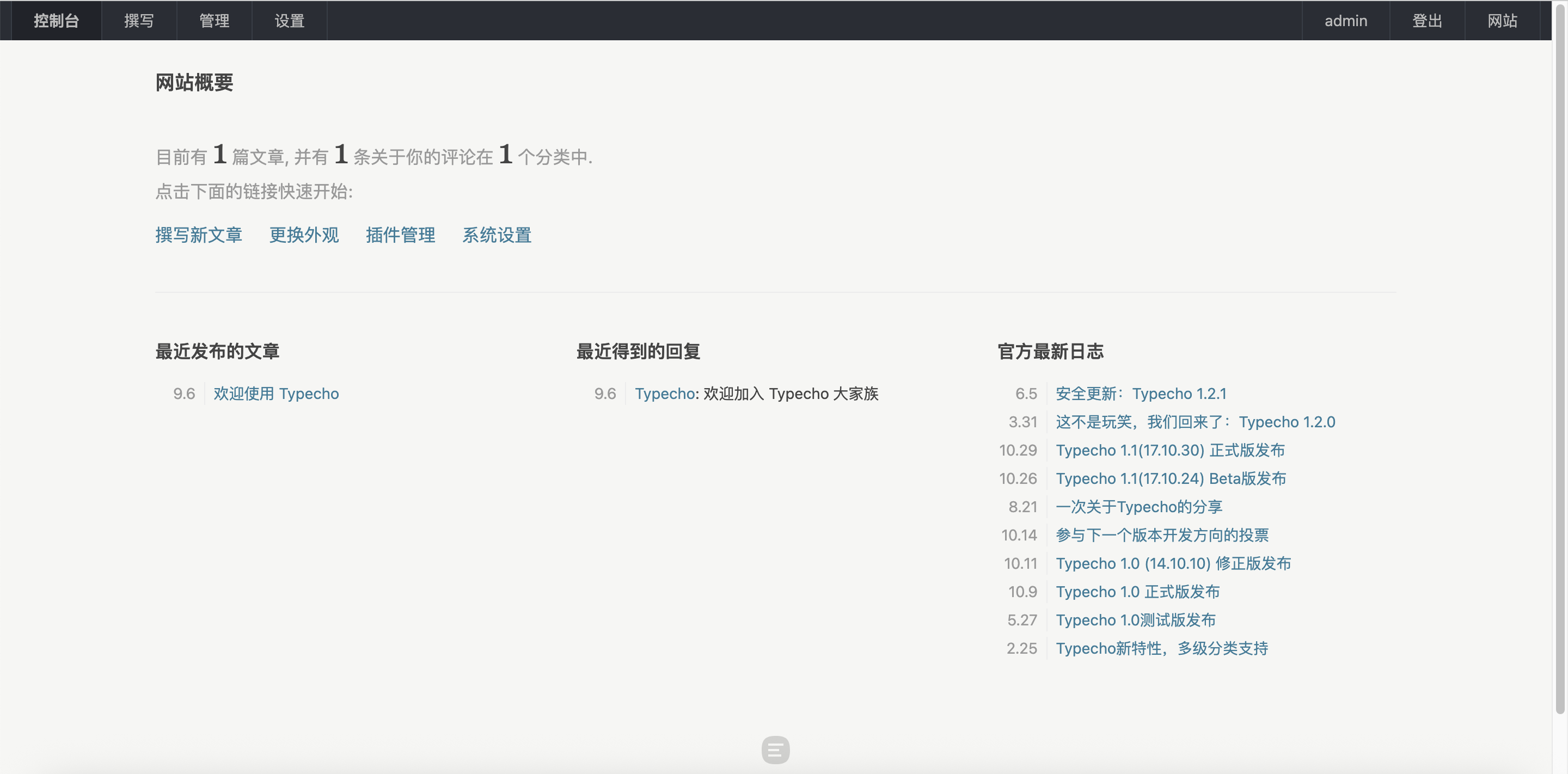
5.5 管理后台
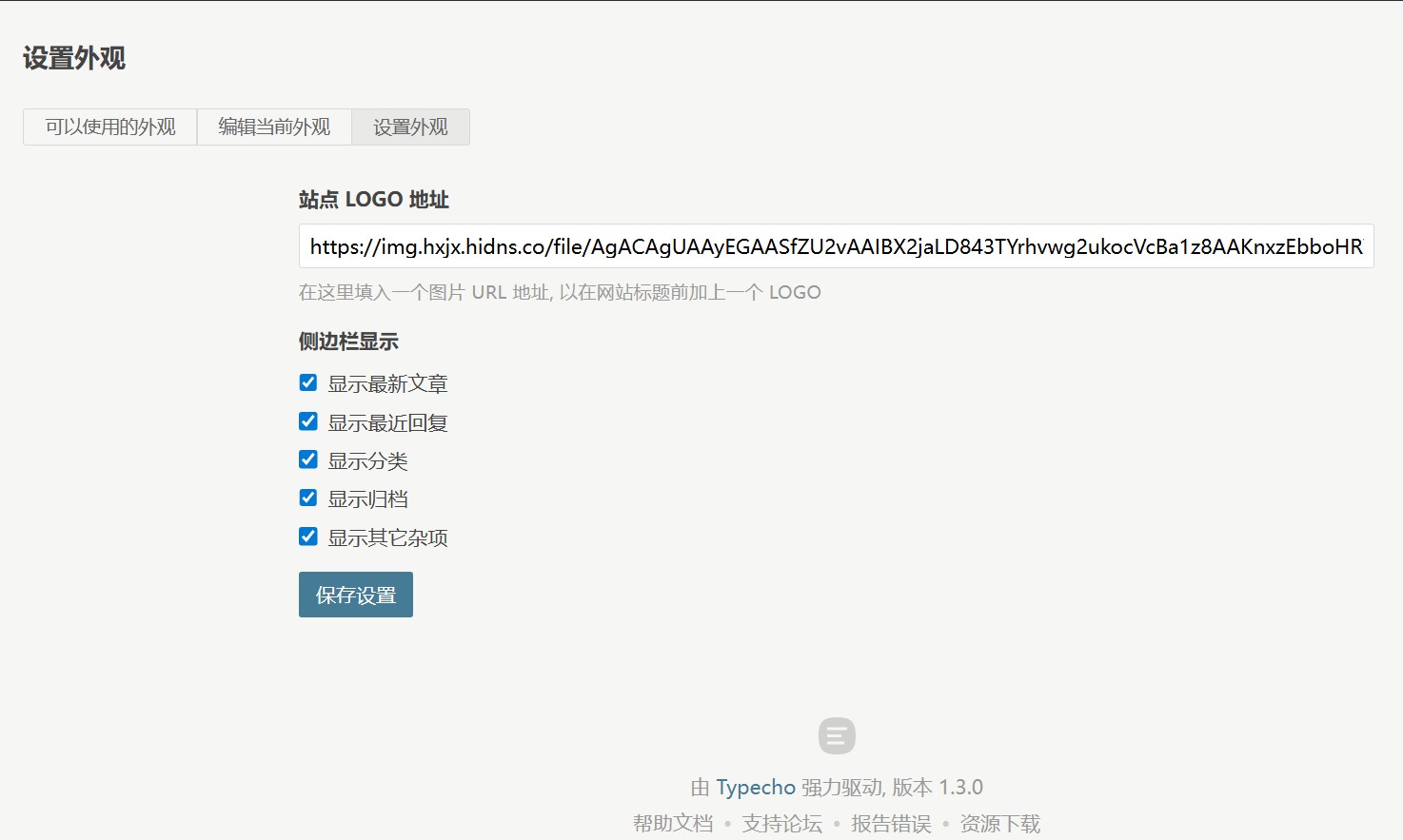
5.6 站点logo
控制台-外观-外观设置
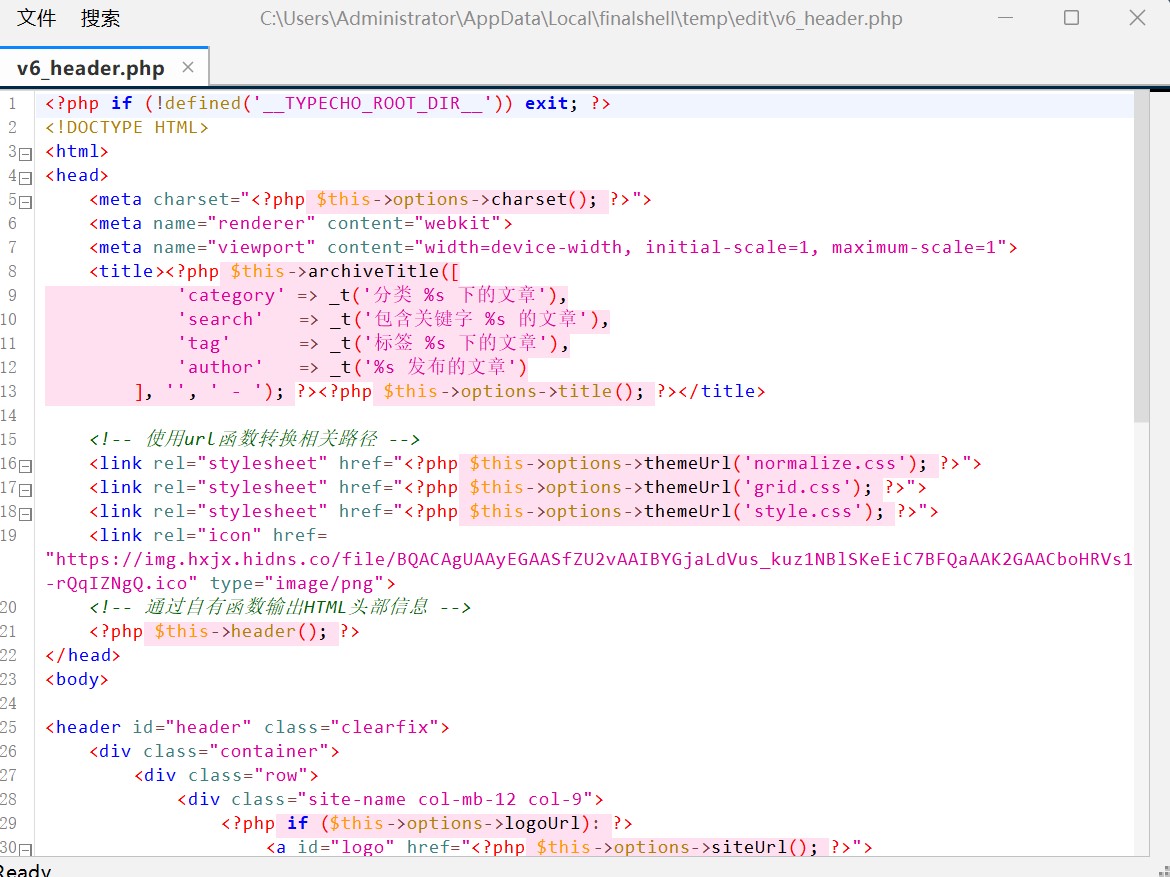
5.7 网站favicon
在您的服务器上,找到并编辑这个文件:./typecho/app/usr/themes/你正在使用的主题名/header.php。
在文件的<head>和</head>标签之间,找到一个合适的位置(比如在 <title> 标签下面),添加以下代码:
1 <link rel ="icon" href ="https://img.hxjx.hidns.co/file/BQACAgUAAyEGAASfZU2vAAIBYGjaLdVus_kuz1NBlSKeEiC7BFQaAAK2GAACboHRVs15w3-rQqIZNgQ.ico" type ="image/png" >
保存 header.php 文件的修改。现在您的网站应该就会显示新的 Favicon 了。
5.8 代码块添加复制按钮
5.8.1 编辑 header.php 文件<head>和</head>标签之间,找到一个合适的位置(比如在 <title> 标签下面),添加以下代码:
1 <link rel ="stylesheet" href ="https://cdnjs.cloudflare.com/ajax/libs/font-awesome/6.5.1/css/all.min.css" >
5.8.2 编辑 footer.php 文件</body>之前添加如下代码:
1 2 3 4 5 6 7 8 9 10 11 12 13 14 15 16 17 18 19 20 21 22 23 24 25 26 27 28 29 30 31 32 33 34 35 36 37 38 39 40 41 42 43 44 45 46 47 48 49 50 51 52 53 54 55 56 57 58 59 60 61 62 63 64 65 66 67 68 69 70 71 72 73 74 75 76 77 78 79 80 81 82 83 84 <style > .code-container { position : relative; } .code-copy-btn { position : absolute; top : 0.5em ; right : 0.5em ; padding : 0.3em 0.6em ; background : none; color : #fff ; border : none; border-radius : 4px ; cursor : pointer; font-size : 1.1em ; opacity : 0.6 ; transition : opacity 0.3s ; z-index : 10 ; } .code-copy-btn :hover { opacity : 1 ; } .code-copy-btn .success { color : #28a745 ; opacity : 1 ; } </style > <script > document .addEventListener ('DOMContentLoaded' , function ( var pres = document .querySelectorAll ('pre' ); pres.forEach (function (pre ) { pre.classList .add ('code-container' ); var button = document .createElement ('button' ); button.className = 'code-copy-btn' ; button.innerHTML = '<i class="fa-solid fa-copy"></i>' ; pre.appendChild (button); button.addEventListener ('click' , function ( var codeElement = pre.querySelector ('code' ); if (codeElement) { var textarea = document .createElement ('textarea' ); textarea.value = codeElement.innerText ; textarea.style .position = 'fixed' ; textarea.style .top = 0 ; textarea.style .left = 0 ; document .body .appendChild (textarea); textarea.select (); try { document .execCommand ('copy' ); var originalHTML = button.innerHTML ; button.classList .add ('success' ); button.innerHTML = '<i class="fa-solid fa-check"></i>' ; setTimeout (function ( button.classList .remove ('success' ); button.innerHTML = originalHTML; }, 2000 ); } catch (err) { button.innerHTML = '<i class="fa-solid fa-copy"></i>' ; } document .body .removeChild (textarea); } }); }); }); </script >
6. 优化功能 typechor插件
经过调试,网站favicon、代码块高亮、代码块复制功能完美适配默认主题
6.1 打开网站下载插件,官方默认的勾选不要修改,只选择需要增加代码块高亮的的插件。点击页面下方下载prism.js和prism.css。
6.2 修改prism.css,内容如下 :
1 2 3 4 5 6 7 8 9 10 11 12 13 14 15 16 17 18 19 20 21 22 23 24 25 26 27 28 29 30 31 32 33 34 35 36 37 38 39 40 41 42 43 44 45 46 47 48 49 50 51 52 53 54 55 56 57 58 59 60 61 62 63 64 65 66 67 68 69 70 71 72 73 74 75 76 77 78 79 80 81 82 83 84 85 86 87 88 89 90 91 92 93 94 95 96 97 98 99 100 101 102 103 104 105 106 107 108 109 110 111 112 113 114 115 116 117 118 119 120 121 122 123 code [class*="language-" ] ,pre[class*="language-" ] { color : #000 ; font-family : Consolas, Monaco, 'Andale Mono' , 'Ubuntu Mono' , monospace; font-size : 1em ; text-align : left; white-space : pre; word-spacing : normal; word-break : normal; word-wrap : normal; line-height : 1.5 ; -moz-tab-size : 4 ; -o-tab-size : 4 ; tab-size : 4 ; -webkit-hyphens : none; -moz-hyphens : none; -ms-hyphens : none; hyphens : none; } pre[class*="language-" ] { overflow : auto; } code [class*="language-" ] ::-moz-selection, code[class*="language-" ] ::-moz-selection,pre[class*="language-" ]::-moz-selection, pre[class*="language-" ] ::-moz-selection { text-shadow : none; background : #b3d4fc ; } code [class*="language-" ] ::selection , code [class*="language-" ] ::selection ,pre[class*="language-" ] ::selection , pre[class*="language-" ] ::selection { text-shadow : none; background : #b3d4fc ; } @media print { code [class*="language-" ] , pre[class*="language-" ] { text-shadow : none; } } .token .comment ,.token .prolog ,.token .doctype ,.token .cdata { color : #708090 ; } .token .punctuation { color : #999 ; } .token .namespace { opacity : .7 ; } .token .property ,.token .tag ,.token .boolean ,.token .number ,.token .constant ,.token .symbol ,.token .deleted { color : #905 ; } .token .selector ,.token .attr-name ,.token .string ,.token .char ,.token .builtin ,.token .inserted { color : #690 ; } .token .operator ,.token .entity ,.token .url ,.language-css .token .string ,.style .token .string { color : #9a6e3a ; background : hsla (0 , 0% , 100% , .5 ); } .token .atrule ,.token .attr-value ,.token .keyword { color : #07a ; } .token .function ,.token .class-name { color : #dd4a68 ; } .token .regex ,.token .important ,.token .variable { color : #e90 ; } .token .important ,.token .bold { font-weight : bold; } .token .italic { font-style : italic; } .token .entity { cursor : help; }
6.3 上传prism.js和prism.css至./typecho/app/usr/themes/default/assets文件夹下
assets文件夹需新建
6.4 编辑 header.php 文件
在您的服务器上,找到并编辑这个文件,路径:./typecho/app/usr/themes/default/header.php
在文件的<head>和</head>标签之间,找到一个合适的位置(比如在 <title> 标签下面),添加以下代码:
1 2 3 4 5 6 7 8 9 10 11 12 13 14 15 16 17 18 19 20 21 22 <link rel ="stylesheet" href ="https://cdnjs.cloudflare.com/ajax/libs/font-awesome/6.5.1/css/all.min.css" > <link rel ="icon" href ="https://cdn.jsdelivr.net/gh/xuhxjx/myimg@main/favicon.ico" type ="image/png" > <style > pre[class*="language-" ] { background : #f3f3f3 ; padding : 1em ; margin : 1.5em 0 ; overflow : auto; border-radius : 5px ; */ } :not (pre) > code [class*="language-" ] { padding : .2em .4em ; margin : 0 ; font-size : 85% ; background-color : rgba (27 ,31 ,35 ,.05 ); border-radius : 3px ; } </style >
6.5 编辑 footer.php 文件</body>之前添加如下代码:
1 2 3 4 5 6 7 8 9 10 11 12 13 14 15 16 17 18 19 20 21 22 23 24 25 26 27 28 29 30 31 32 33 34 35 36 37 38 39 40 41 42 43 44 45 46 47 48 49 50 51 52 53 54 55 56 57 58 59 60 61 62 63 64 65 66 67 68 69 70 71 72 73 74 75 76 77 78 79 80 81 82 83 84 85 86 87 88 89 90 91 92 93 94 95 96 97 98 99 100 101 102 103 104 105 106 107 108 109 110 111 112 113 114 115 116 117 118 119 120 121 122 <style > .code-copy-wrapper { position : relative; } .code-copy-btn { position : absolute; top : 8px ; right : 8px ; padding : 5px 10px ; font-size : 14px ; background : transparent; color : #555 ; border : none; cursor : pointer; opacity : 0 ; transition : opacity 0.2s ease-in-out; z-index : 10 ; } .code-copy-wrapper :hover .code-copy-btn { opacity : 1 ; } .code-copy-btn :hover { color : #000 ; } .code-copy-btn .success { color : #2E86C1 ; } </style > <script > document .addEventListener ('DOMContentLoaded' , function ( const pres = document .querySelectorAll ('pre' ); pres.forEach (pre => const wrapper = document .createElement ('div' ); wrapper.className = 'code-copy-wrapper' ; pre.parentNode .replaceChild (wrapper, pre); wrapper.appendChild (pre); const button = document .createElement ('button' ); button.className = 'code-copy-btn' ; button.innerHTML = '<i class="fa-solid fa-copy"></i>' ; button.setAttribute ('title' , '复制代码' ); wrapper.appendChild (button); button.addEventListener ('click' , () => { const codeElement = pre.querySelector ('code' ); if (!codeElement) return ; const codeToCopy = codeElement.innerText ; if (navigator.clipboard && window .isSecureContext ) { navigator.clipboard .writeText (codeToCopy).then (() => { showSuccess (button); }).catch (err => copyFallback (codeToCopy, button); }); } else { copyFallback (codeToCopy, button); } }); }); function showSuccess (button ) { const originalHTML = button.innerHTML ; button.classList .add ('success' ); button.innerHTML = '<i class="fa-solid fa-check"></i> 已复制' ; setTimeout (() => { button.classList .remove ('success' ); button.innerHTML = originalHTML; }, 2000 ); } function copyFallback (text, button ) { const textarea = document .createElement ('textarea' ); textarea.value = text; textarea.style .position = 'fixed' ; textarea.style .opacity = 0 ; document .body .appendChild (textarea); textarea.select (); try { if (document .execCommand ('copy' )) { showSuccess (button); } } catch (err) { console .error ('Fallback copy failed' , err); } document .body .removeChild (textarea); } }); </script > <script src ="<?php $this->options->themeUrl('assets/prism.js'); ?>" > </script >
7. 加载动画 Web 前端代码(HTML/CSS/JS)是通用的,它不分 Hugo 还是 Typecho。只要是网页,这段代码都能跑。
在 Typecho 里添加这个动画,甚至比 Hugo 更简单,因为你可以在后台直接改。
请按照以下 3 步 操作:
第一步:登录 Typecho 后台
进入你的 Typecho 博客后台。
在顶部菜单找到 “控制台” -> “外观”。
点击 “编辑当前外观”。
第二步:找到 header.php
在右侧的文件列表中,找到名为 header.php (通常叫“公共头部”或“页头”) 的文件。
点击它,中间会出现代码编辑框。
第三步:粘贴代码
在代码框里,按 Ctrl + F 搜索 <body。
找到
标签(或者 <body> 这种)。
在
标签的下一行,直接粘贴我刚才给你的那段最终定稿版代码。
1 2 3 4 5 6 7 8 9 10 11 12 13 14 15 16 17 18 19 20 21 22 23 24 25 26 27 28 29 30 31 32 33 34 35 36 37 38 39 40 41 42 43 44 45 46 47 48 49 50 51 52 53 54 55 56 57 58 59 60 61 62 63 64 65 66 67 68 69 70 71 72 73 74 75 76 77 78 79 80 81 82 83 84 85 86 87 88 89 90 91 92 93 94 95 96 97 98 99 100 101 102 103 104 105 106 107 108 109 110 111 112 113 114 115 116 117 118 <div id ="halo-racer-loader" > <div class ="racer-container" > <div class ="racer-bar pale-1" > </div > <div class ="racer-bar pale-2" > </div > <div class ="racer-bar red" > </div > </div > </div > <style > #halo-racer-loader { position : fixed; top : 0 ; left : 0 ; width : 100% ; height : 100% ; z-index : 999999999 !important ; background : #ffffff ; display : flex; justify-content : center; align-items : center; transition : opacity 0.3s ease, visibility 0.3s ease; } [data-theme='dark' ] #halo-racer-loader , html .dark #halo-racer-loader , body .dark #halo-racer-loader { background : #1a1a1a ; } #halo-racer-loader .hidden { opacity : 0 ; visibility : hidden; } .racer-container { position : relative; width : 80px ; height : 20px ; } .racer-bar { position : absolute; top : 0 ; left : 0 ; width : 12px ; height : 20px ; border-radius : 0 ; } .pale-1 { background-color : rgba (255 , 71 , 87 , 0.2 ); z-index : 1 ; animation : round-trip 1.5s cubic-bezier (0.4 , 0 , 0.2 , 1 ) infinite; animation-delay : 0.15s ; } .pale-2 { background-color : rgba (255 , 71 , 87 , 0.5 ); z-index : 2 ; animation : round-trip 1.5s cubic-bezier (0.4 , 0 , 0.2 , 1 ) infinite; animation-delay : 0.08s ; } .red { background-color : #ff4757 ; z-index : 10 ; animation : round-trip 1.5s cubic-bezier (0.4 , 0 , 0.2 , 1 ) infinite; animation-delay : 0s ; } @keyframes round-trip { 0% { left : 0 ; } 30% { left : 68px ; } 50% { left : 68px ; } 80% { left : 0 ; } 100% { left : 0 ; } } </style > <script > (function ( const loader = document .getElementById ('halo-racer-loader' ); const startTime = Date .now (); function removeLoader ( const elapsedTime = Date .now () - startTime; if (elapsedTime < 500 ) { loader.style .transition = 'opacity 0.1s ease' ; loader.classList .add ('hidden' ); setTimeout (() => { loader.style .display = 'none' ; }, 100 ); } else { loader.classList .add ('hidden' ); setTimeout (() => { loader.style .display = 'none' ; }, 300 ); } } window .addEventListener ('load' , removeLoader); document .addEventListener ('pjax:complete' , removeLoader); document .addEventListener ('pjax:end' , removeLoader); setTimeout (function ( if (!loader.classList .contains ('hidden' )) { removeLoader (); } }, 5000 ); })(); </script >